Ticket types are the individual tiers a buyer picks between: General Admission, VIP, Early Bird, and so on. Each tier has its own name, price, and capacity.
Set them up from your event: open it in the dashboard and press Manage ticket types. Add a ticket with a name, a price and how many are available, then publish the event from the same page. Under More options you can set a sales window, a minimum or maximum per order, or a ticket that admits more than one person. Tick Pay what you want to let buyers choose the price.
What a ticket type looks like to buyers
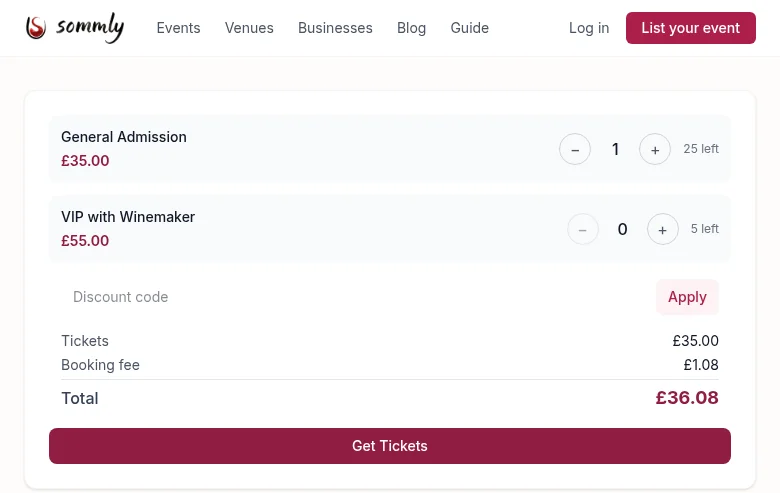
Once tiers are live on your event, buyers see the ticket picker at the bottom of the event page. They pick a quantity per tier, a live total appears (ticket price plus booking fee), and they check out through Mollie.
Pricing
Tickets are sold in GBP, prices are inclusive of everything except the booking fee. On top of your set price, the buyer pays:
- A 2.5% + 20p booking fee. Visible before checkout.
- Mollie's transaction fee, roughly 1%, deducted from your payout on the Mollie side.
For a £35 ticket:
- Buyer sees £35.00 + £1.08 booking fee = £36.08 total.
- You receive roughly £34.65 after Mollie's fee.
Capacity and sell-outs
Sommly tracks sales in real time against each tier's capacity. When a tier is sold out, it shows as Sold out on the public page and stops accepting orders. When every tier is sold out, the event switches to a full Sold out badge and hides the picker.
Waitlist
Once every ticket has gone, your event page offers a waitlist instead. If tickets come free later, from a refund, a booking that was never paid for or you adding more, everyone waiting gets an email within about ten minutes. Tickets go to whoever books first. You can see who's waiting from your event under Waitlist.
Discount codes
Buyers can enter a discount code above the total when they book. Make codes under Checkout codes in the sidebar: a percentage or an amount off, for all your events or just one, with an optional usage limit and end date. You can pause a code at any time. A code that has been used is paused rather than deleted, so your orders still show it.
Questions at checkout
Need to know something before the day, like dietary needs or which session someone wants? Open your event and press Checkout questions. A question can take a written answer, a choice from a list, or a tick box, and you can make any of them required. A required tick box suits things buyers have to agree to, like being over 18.
Each order answers once. You'll find the answers on the order page and as extra columns in the attendee download. If you remove a question people have already answered, it stops being asked but keeps its answers.
Messaging the people booked
To tell everyone booked about a change of time, what to bring or how to find you, open your event and press Message attendees. It goes to everyone holding a ticket and whoever bought it, once each. It comes from your business name, and replies come straight to your business email. Send yourself a test first if you'd like to see how it looks. You can send up to five messages per event in a day.
Closing sales early
To stop sales before the door without deleting tiers, drop the event from Published back to Draft from your Events list. Existing orders are untouched; new ones stop coming in.